Customize the look and feel of your entire Typeset project from one central location.
The Themes section in Typeset is your one-stop location for all design customization. From fonts and spacing to branding and animations, the Theme Editor gives you complete control over how your projects look.
In the Themes section, you'll find your Branded Theme and any saved Custom Themes for easy access, a library of premade Typeset Themes ready to use as a design foundation, and controls for text size, scaling, line height, margins, and whitespace.
Choosing a Theme
You can change the overall theme and style of your presentation at any time. Don't worry about experimenting, you can always return to a previous theme.
To select a theme, click the Themes button in the top right corner and choose a theme from the list. You'll see a menu of different classic and unique presentation themes to fit your content, as well as any custom themes you've saved.
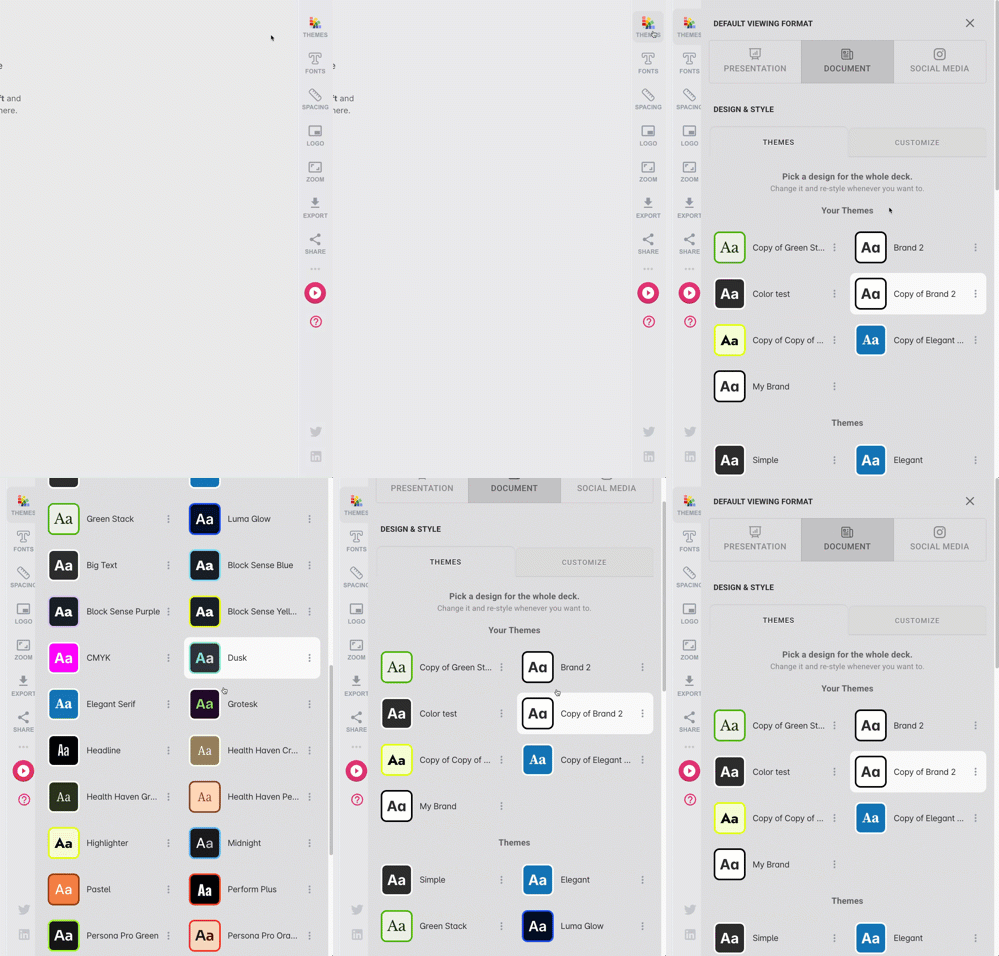
It's always a good idea to consider who the audience for your presentation is and what they might want or expect in a theme. A group of finance executives might prefer a minimalist theme, while an art class might rather see something colorful and bold.
Creating a Custom Theme
To create your own theme:
Go to the Themes section.
Duplicate any existing theme or your Branded Theme.
Select it and click the Customize tab.
Rename your theme in the Theme Name field.
Adjust design elements by using the available customization options described below.
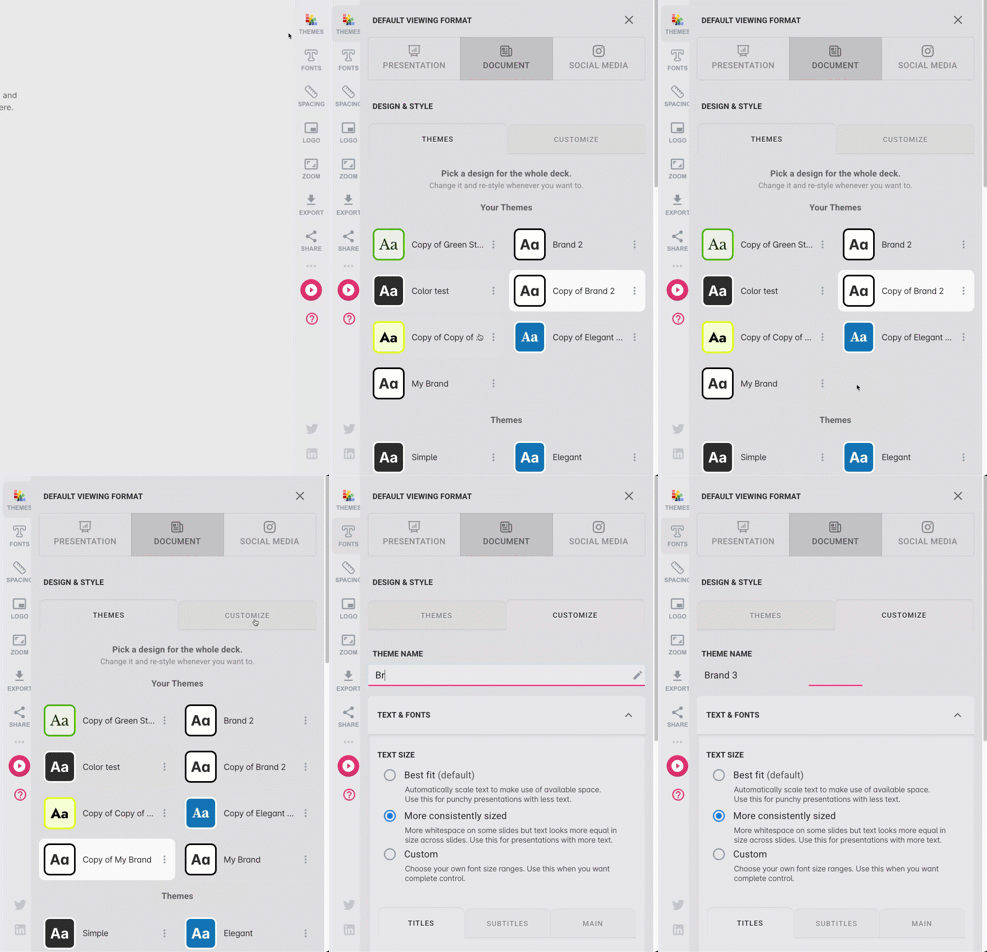
Customize Tab
Under Text Size, you'll find three modes for controlling how text sizes are determined across your project:
Best Fit (default): Typeset automatically scales text to make use of available space. Use this for punchy presentations with less text. Text across multiple pages may vary slightly to achieve an optimal layout.
More Consistently Sized: Maintains more whitespace on some slides, but text looks more equal in size across slides. Use this for presentations with more text.
Custom: Choose your own font size ranges. Use the slider to set precise text sizes by overlapping the two dots. This allows exact sizing for Title, Subtitle, and Main/Normal Text individually. Use this when you want complete control.
Each text type can have its own font family. To change, click the Font Family dropdown and select the font you want.
Alignment Presets
Alignment Presets are shortcuts for applying text alignment across multiple text elements at once, instead of adjusting each text type individually.
Titles Centred: Centers everything except body text elements (normal text, lists, and quotes). Body text reverts to whatever the layout prefers by default.
All Left-Aligned: Aligns every text element to the left.
NOTE: When no alignment is chosen for a specific text type, it reverts to whatever the layout prefers as the default.Right-to-Left Text Alignment
Perfect for RTL languages, this setting ensures that text direction and alignment are correctly formatted for your project.
Spacing
Adjust whitespace and margins to control the visual balance of your pages.
Logo and Branding
Add or update your logo to maintain a professional, on-brand look. For more details, check out our Branding: How to add your Logo, Fonts and Color Guidelines article.
Advanced Settings
Page Numbers: Toggle page numbering on or off.
Reduce Animations: Enable this option for a simpler, distraction-free presentation style.
Saving Your Theme
After customizing your theme, click the Save changes to theme button located at the bottom of the editor beneath the Advanced submenu. This ensures all your changes are applied and saved for future use.
Frequently Asked Questions
Q: Can I edit the premade Typeset Themes?
A: Yes, you can duplicate any premade Typeset Theme and then edit it under the Customize tab. This way, the original remains untouched while you create a personalized version.
Q: Why does the text size vary across pages when using Best Fit mode?
A: Best Fit mode is designed to adjust text size to fill the available space dynamically. This ensures every page looks balanced, but it can lead to minor variations across pages.
Q: Can I still adjust alignment for individual text types after applying an Alignment Preset?
A: Yes. Presets are shortcuts, not locks. You can fine-tune alignment for any individual text type after applying a preset.
Q: What counts as "body text" when using the Titles Centred preset?
A: Body text includes normal text, lists, and quotes. These elements are not affected by the Titles Centred preset and will continue to use whatever alignment the layout prefers by default.
Q: Can I switch between Alignment Presets after applying one?
A: Yes, you can switch between presets at any time. Applying a new preset will update the alignment for the affected text types.