 Easily calculate taxes with our new tax feature!
If you want to calculate tax and add it to your product price, you can do it easily within SamCart! Read on to learn more about adding taxes to your product pages.
NOTE: You must be on a current SamCart plan (Core, Pro, Enterprise) to utilize the tax feature. SamCart currently only supports tax for the US, Canada, Australia, the UK and the EU.
Enable Taxes for Your Marketplace
In order to collect taxes on your products, you'll first need to decide where you want to collect taxes. Navigate to your Taxes settings by clicking on the blue person icon in the top right corner of your dashboard and select Settings from the dropdown menu:
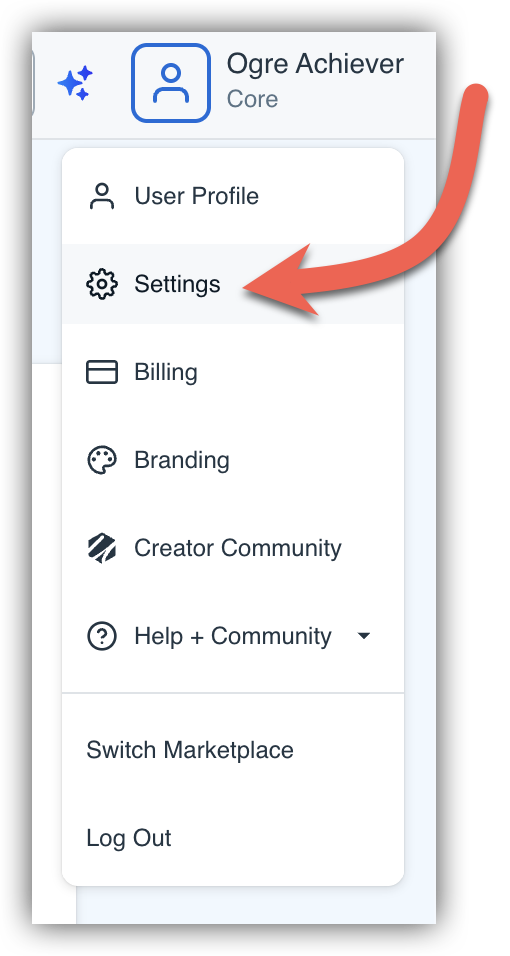
Note - if you have a marketplace logo set, you will see your logo instead of the blue person icon.
Then, click on the Taxes tab in the bottom left side of the page.
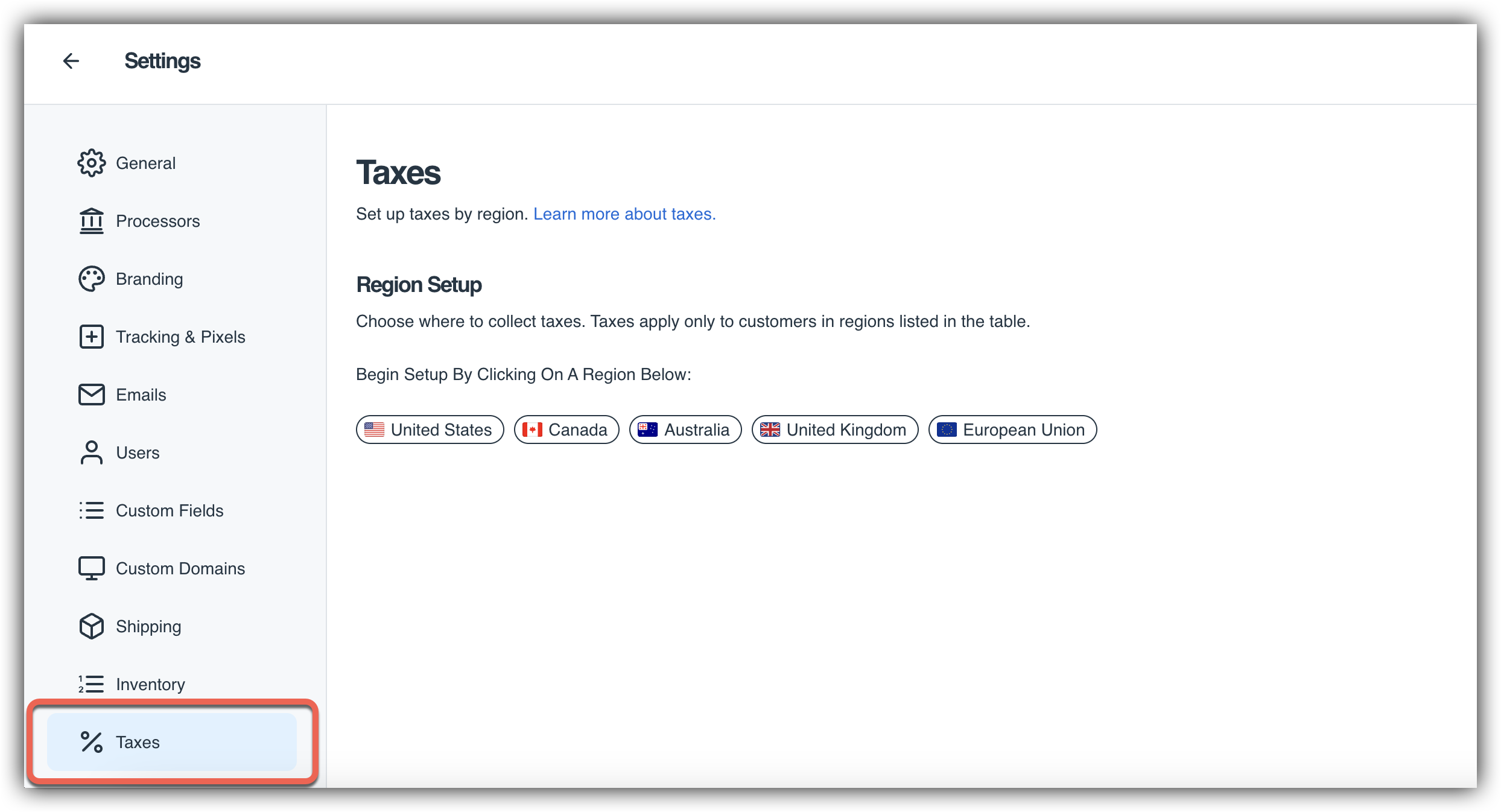
On this page under the Region Setup section you will see the option to add taxes for the United States, Canada, Australia, the UK or the EU! The taxes feature is only available with SamCart for these areas at this time. Click on one of these options to choose specifically where within these areas you'd like to charge taxes! For example, if you click on United States you will be able to toggle taxes on or keep them off for each state individually:
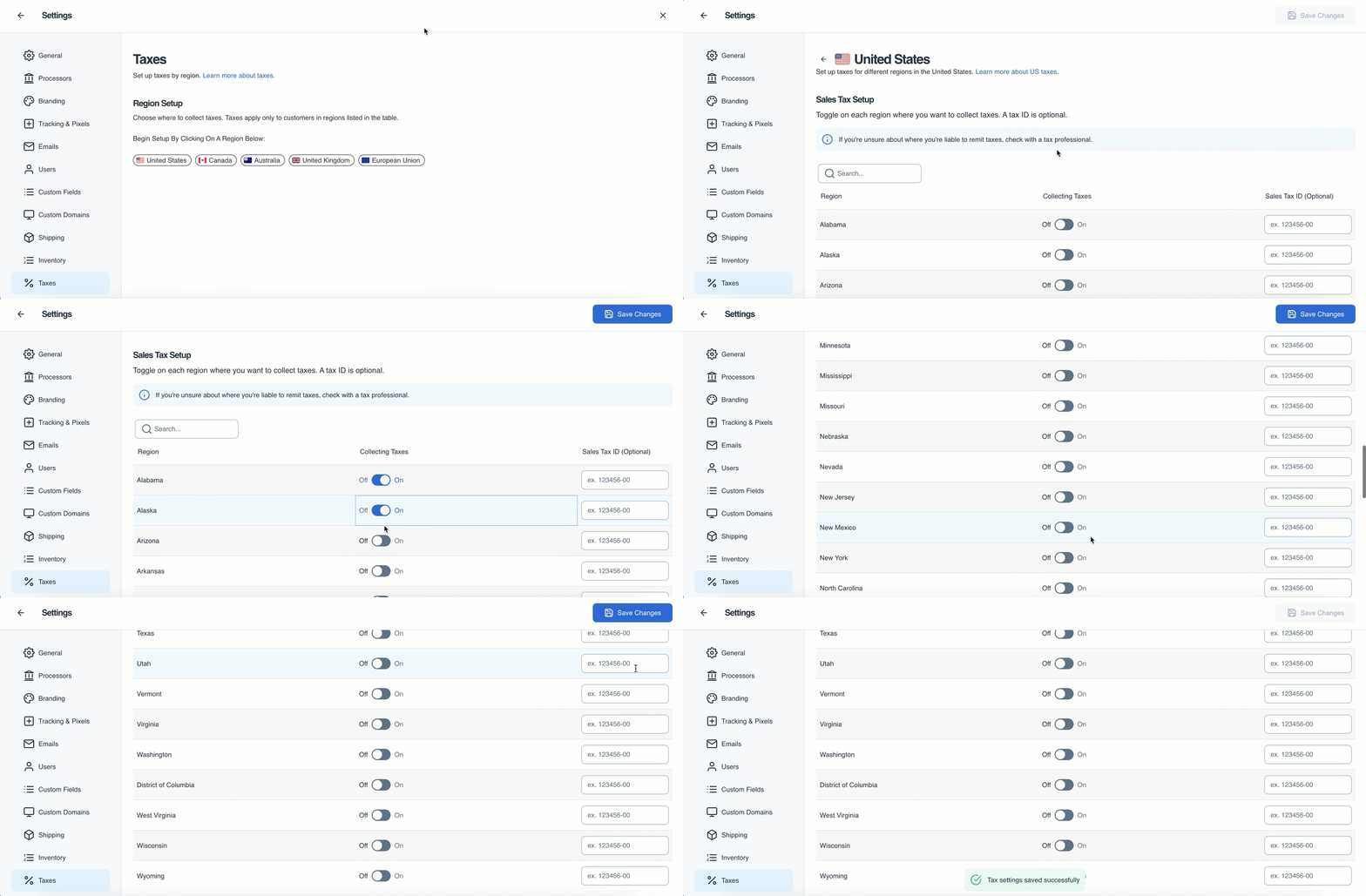
Select the Preset Tax Region(s) and the specific regions within those that you'd like to collect taxes for. Don't forget to click Save Changes in the top right corner to save any regions you have selected! After saving your changes you will be able to easily see at a glance the general regions that you have taxes set up in: 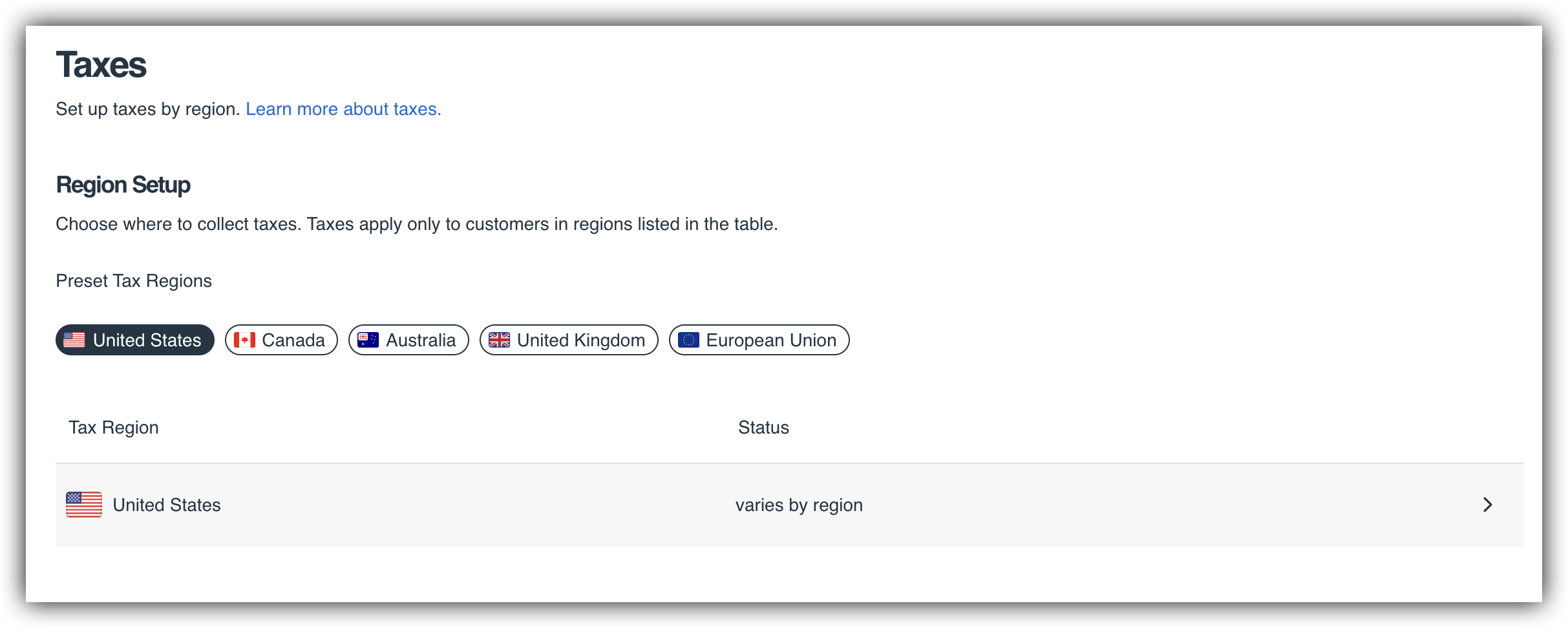
By clicking on the tax region you can see/edit the specific regions you have taxes set up in at any time!
Each region will have an optional Sales Tax ID (United States), VAT ID (United Kingdom and European Union) or GST ID (Canada and Australia) column. You can fill out this column with your Tax ID(s) if you'd like your business's tax ID to appear on customer invoices, when applicable. Otherwise, you can leave this section blank!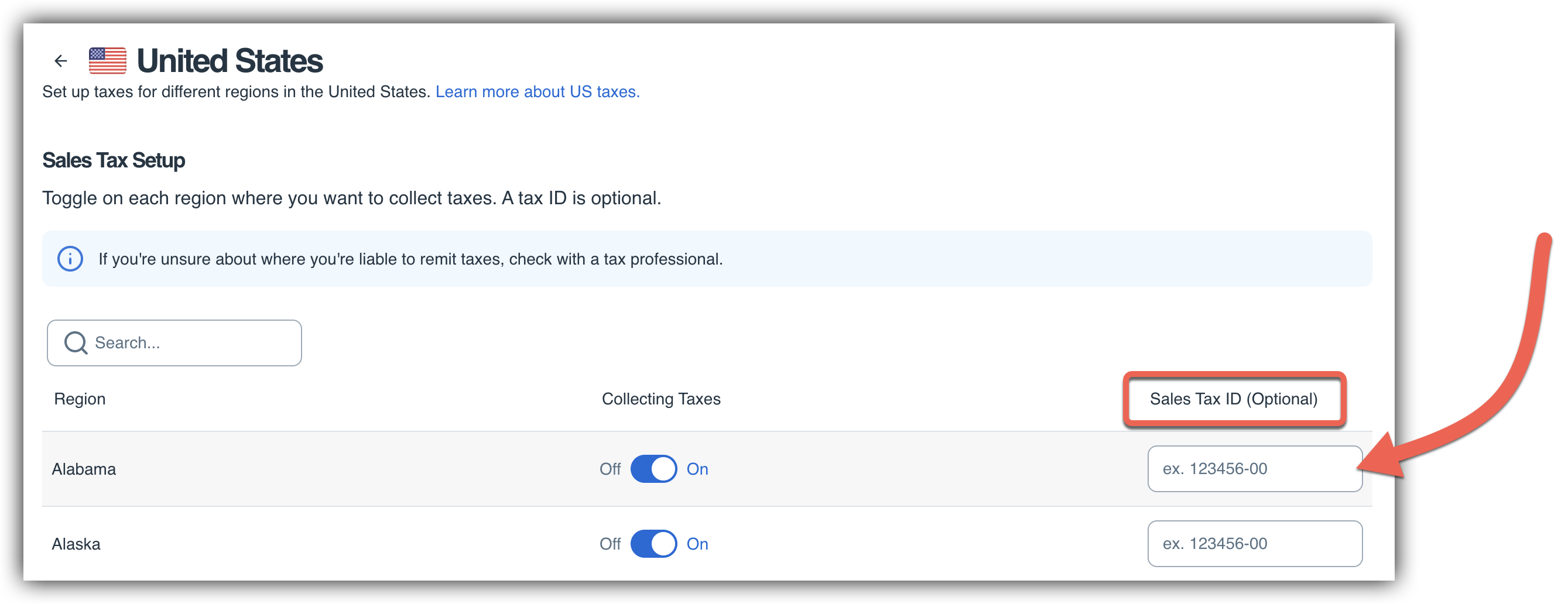
Turn on Taxes for Individual Products
Once you have enabled taxes for your marketplace by selecting regions, you will need to enable taxes for each of your products individually. To do so, start by clicking on the Products tab in your marketplace navigation bar and select the product that you would like to turn taxes on for.
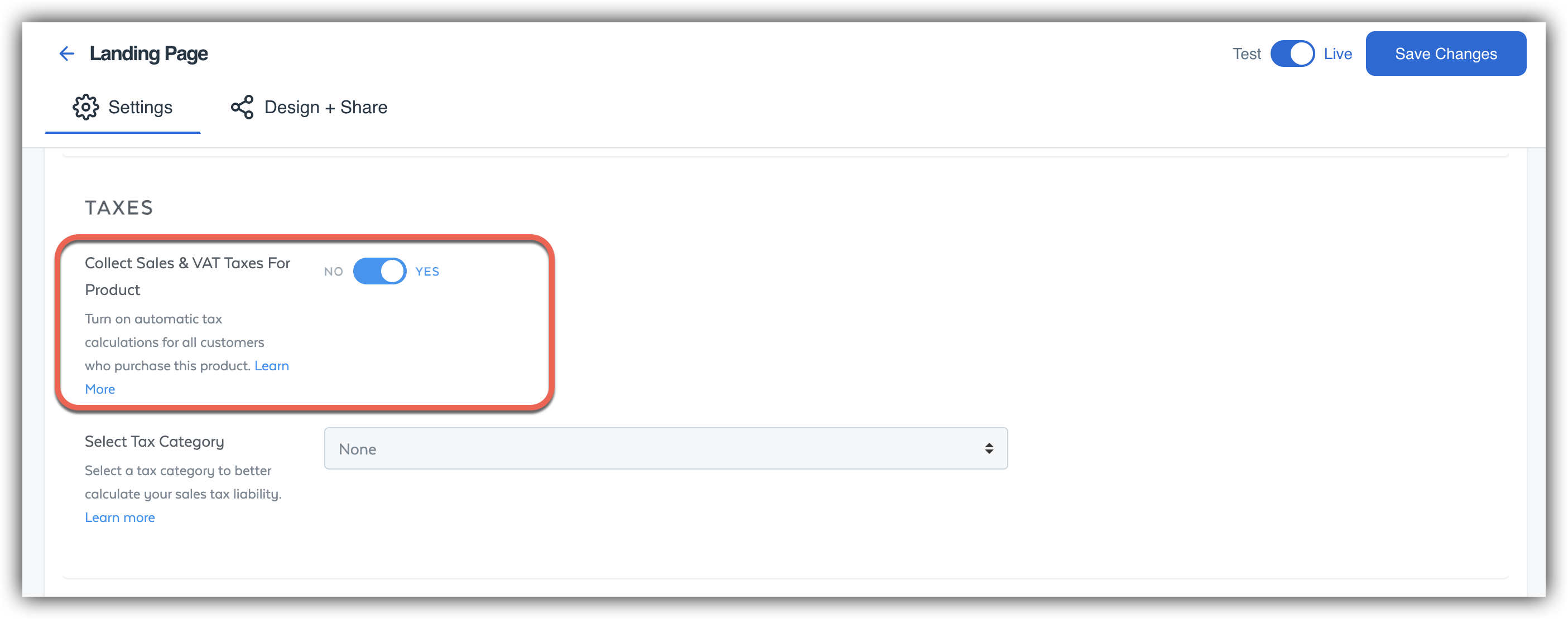
Once you have selected the product, scroll down on the product's Details tab to the Taxes section. Turn on the Collect Sales & VAT Taxes For Product toggle and click Save Changes.
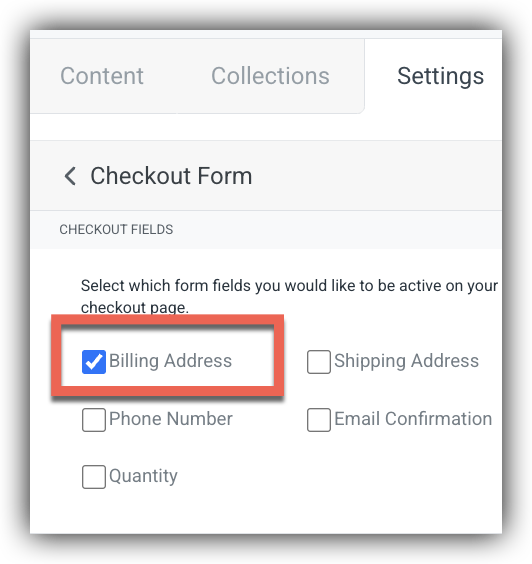
Next, you need to make sure that you are collecting either a Billing or Shipping Address from your customers. Collection of an address must be enabled on your checkout pages in order to collect tax from customers.
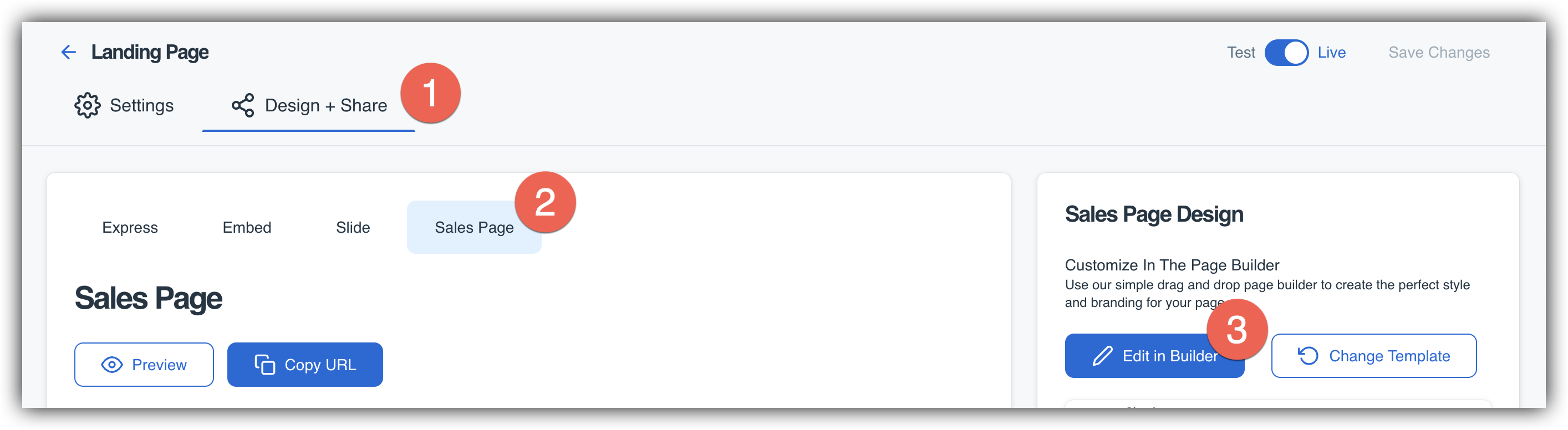
To turn on Billing or Shipping Address on your checkout page, click on the Design + Share tab within your product, then the Sales Page tab, and finally the Edit in Builder button. This will take you to the Content Builder where you can enable the address fields on your checkout form!
Once you are in the Content Builder, to Settings > Checkout Form in the right hand toolbar and ensure that Billing Address and/or Shipping Address is checked. If both a billing and shipping address are provided, tax will be calculated based on the shipping address. Make sure to click the Publish button to ensure these changes appear on your live sales page!
SamCart provides hundreds of Tax Categories to choose from! In the Taxes section on the Details tab inside your product, you will have the option to select a tax category. If you have a specific tax category that you would like to select, you can do so by using the Select Tax Category dropdown menu. Please note that selecting a tax category is optional and is not a requirement for collecting taxes with SamCart.
By default, the Tax Category will be set to None. The None option will provide the full taxable rate for every locality (country, state, city) we have data for.
If you'd like to have the exact sales tax calculation for the product you sell you will want to select your product's category from the Select Tax Category dropdown.
For example, if your product is taxed at a reduced rate, you will need to adjust the Tax Category to ensure you are not over-charging your customers.
Note: Tax Categories are exclusively used for US sales tax calculations. The Tax Category is not referenced on non-US VAT calculations.
Changes To Your Checkout Page
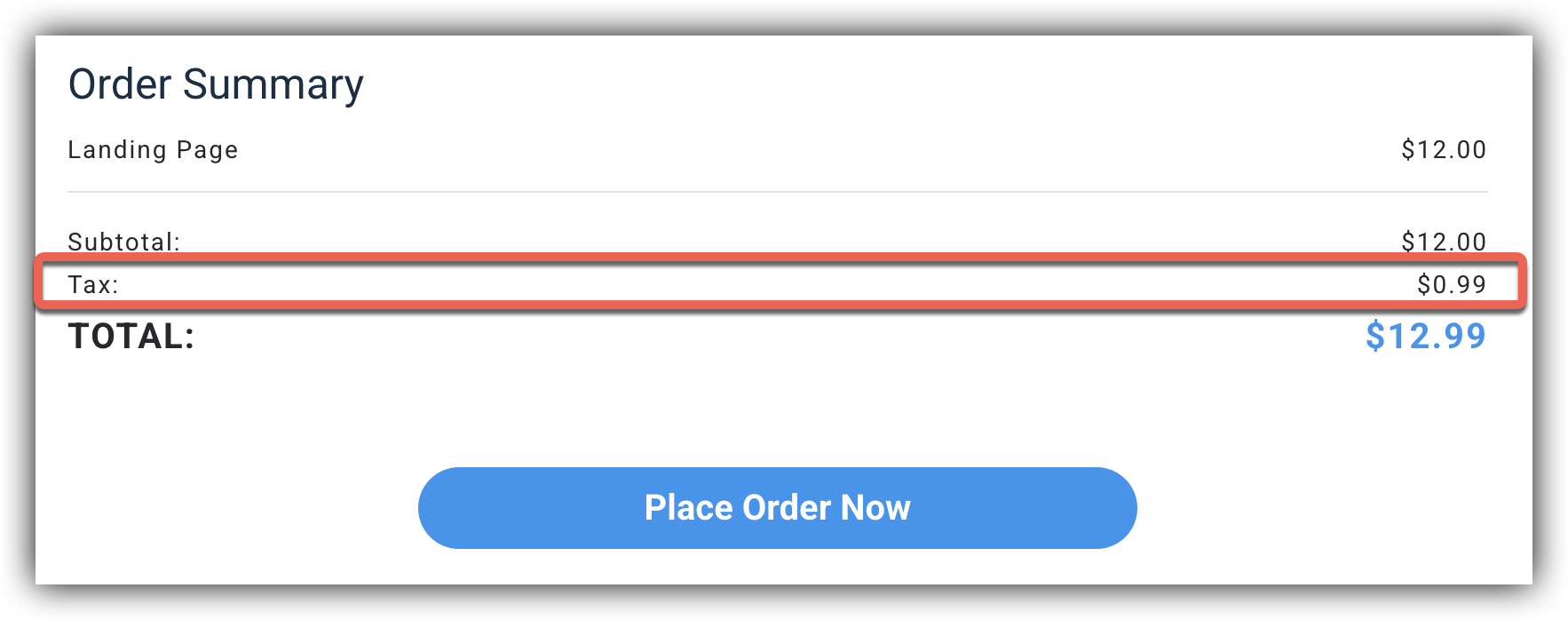
Once a customer enters their Billing or Shipping Address on your checkout page, a Tax line will appear in their Order Summary:
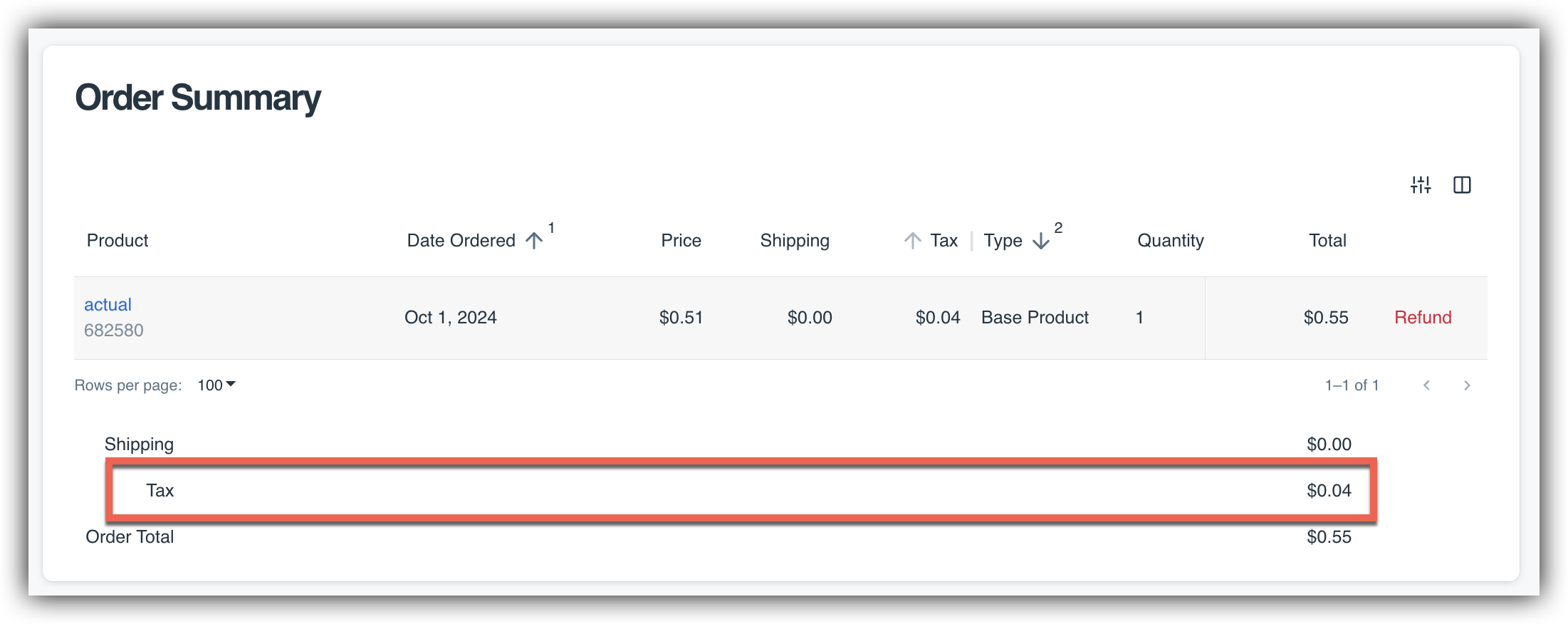
Tax will also be clearly noted on the Order Summary Page:

As well as in the Order Summary view within your SamCart Marketplace:
Collecting Taxes with Checkout Anywhere
You can now collect taxes on our Express, Embed, and Slide Checkout experiences for your digital products! Following the steps in this article will enable taxes for your traditional Sales Page checkout experiences, as well as all Checkout Anywhere experiences. Please note that at this time you can only collect taxes using our Checkout Anywhere experiences for digital products. If you wish to collect taxes for a physical product, you will need to use the traditional sales page.
When taxes are enabled for a product, the taxes will appear in the Amount Due Now total on the Express, Embed, or Slide Out checkout after the customer has entered their address. For example, in the screenshot below the product price (Subtotal) is $12, and the price with tax is $12.99: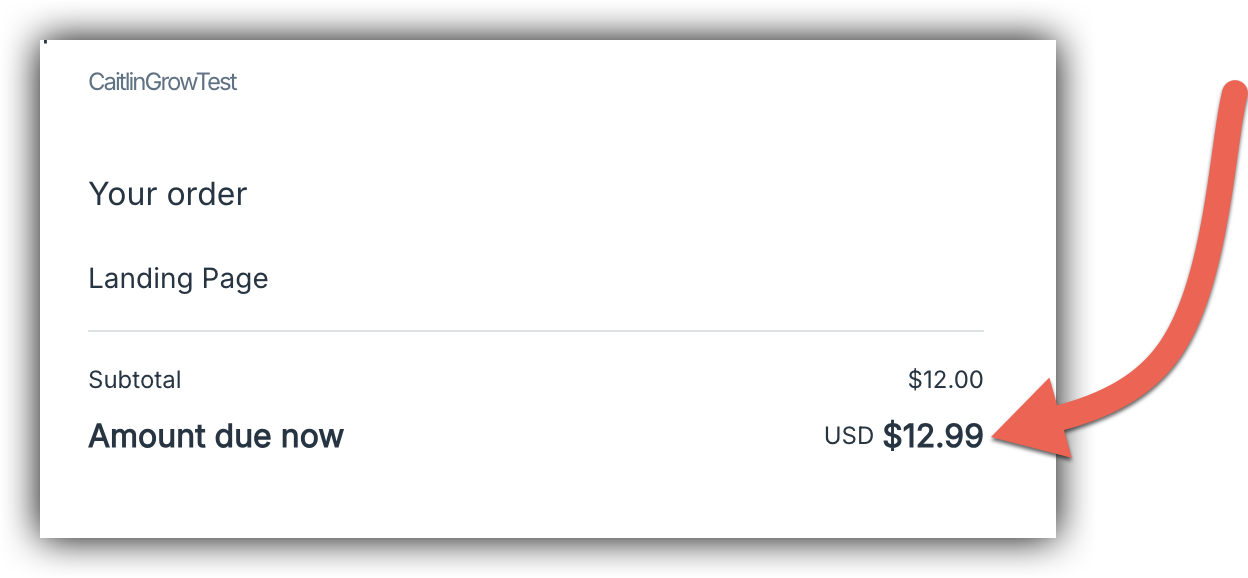
Sales Tax Reporting
You can now view a report of all the sales tax you have collected directly within SamCart! You will be able to:
- See total tax collected by jurisdiction (state/region)
- Filter your tax data by date range
- Export a summary report for quick tax filing
- Export a detailed report with order-by-order tax breakdown
To access your Sales Tax Report, navigate to Analytics → Sales Tax in your marketplace dashboard.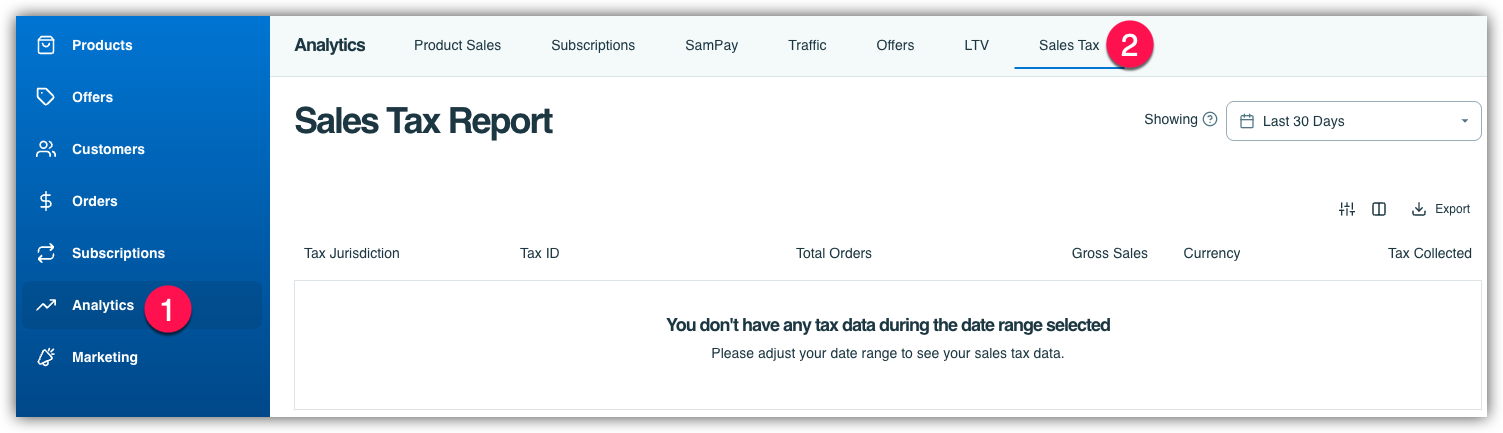
The Sales Tax Report shows your tax collected grouped by jurisdiction (nexus). For each jurisdiction, you'll see:
- Tax Jurisdiction — The state or region where tax was collected
- Tax ID — Your sales tax ID for that jurisdiction (if configured in your Tax Settings)
- Total Orders — Number of taxable orders from that jurisdiction
- Gross Sales — Total sales amount before tax
- Currency — The currency of the transactions
- Tax Collected — Total tax collected for that jurisdiction
You can use the date picker in the top right to filter the report to a specific time period!
To export your Sales Tax Report, click Export to download your tax data as a CSV file. 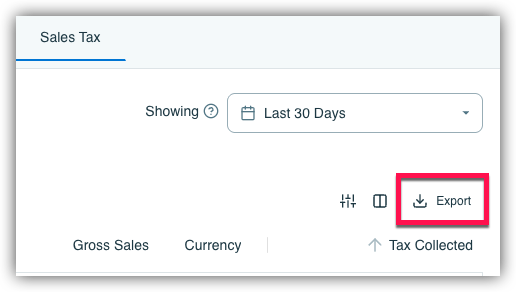
You can choose between two report types:
- Nexus Summary - A summary of tax collected per jurisdiction—the same data shown in the UI. Use this for quick tax filing or to see totals by state.
- Detailed Report - A complete order-by-order breakdown including:
- Order ID and date
- Customer name and billing address
- Tax jurisdiction
- Subtotal, tax amount, and order total
- Breakdown of order taxes vs subscription taxes
Use the Detailed Report when you need transaction-level records for your accountant or tax software!
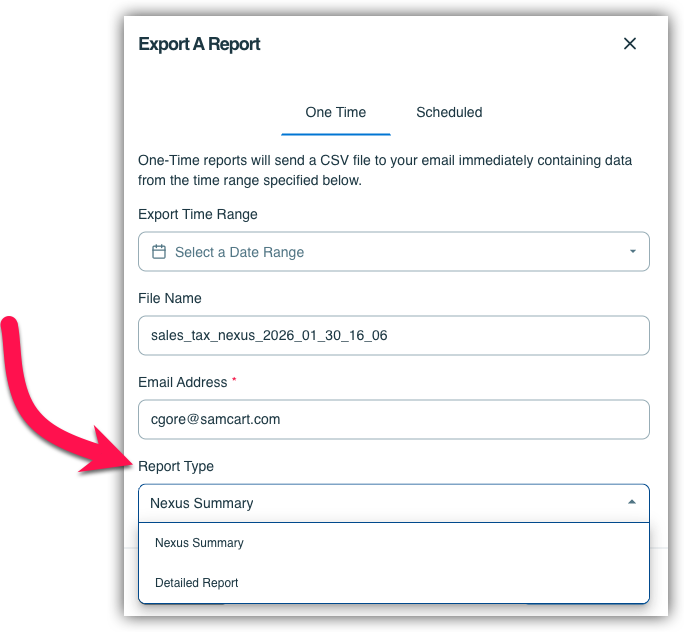
Both one-time and scheduled exports are available.
Frequently Asked Questions
Q: Will turning on taxes for a product impact existing subscriptions?
A: No - current subscriptions will continue on their current cadence for the amount that the customer agreed to pay during checkout. Moving forward, if taxes are turned on for a subscription product, all new subscriptions will charge taxes.
Q: What if taxes are not showing up on a product where taxes are turned on?
A: If the tax is not showing up on your checkout page, first ensure that the customer billing address is correct and filled in. If the customer billing address is filled in and taxes are still not showing, it is likely that taxes do not need to be collected for the purchase. Double check to ensure that you have taxes enabled within the Marketplace Taxes Settings for the specific region the customer's address is in!
Q: How are taxes calculated for Order Bumps and Upsells?
A: Order Bumps and Upsells will only be charged tax if the primary product has tax collection turned on.
Q: What if I’m currently using Taxamo to calculate taxes? Can I convert to SamCart’s tax calculation (via Taxjar)?
A: You can convert from Taxamo to Taxjar, but there are some advanced features that Taxamo offers that may not have equivalencies in SamCart’s implementation of Taxjar.
Q: I am in Canada. Can I charge CAD taxes?
A: Yes, this is a new option for Marketplaces selling within Canada! You can now charge CAD taxes. To do this, you will need to reach out to Support at support@samcart.com. A Support Agent will then have you fill out a CSV file with the percentage of tax you would like to charge for each Providence in Canada and they will enable CAD taxes for you.
Q: I had nexuses set up with the old taxes feature. What happened to those when the newer taxes feature was released?
A: We've got you covered! When we created this feature, we also did a tax nexus migration for customers who had existing nexuses set up in their marketplace. If you had a nexus in your marketplace with the old taxes feature that region will automatically be toggled "on" within our new taxes feature, so that taxes in any nexuses you had set up still continue to collect seamlessly.
Q: Why don't I see a Tax ID for some jurisdictions in the Sales Tax Report?
A: Tax IDs come from your Tax Settings. If you haven't added your sales tax ID for a jurisdiction, it will appear blank in the report. You can add your Tax IDs in Settings → Taxes.
Q: Why is a jurisdiction showing $0 in tax collected in the Sales Tax Report?
A: This means no taxable orders were placed by customers in that jurisdiction during your selected date range. Check that you have tax collection enabled for products being purchased by customers in that area.
Q: Does the Sales Tax Report include refunded orders?
A: No. Refunded orders are currently excluded from the Sales Tax Report.
Q: Does this include test orders?
A: No. Test/sandbox orders are not included in the report.
Q: Can I see VAT or GST in the Sales Tax Report?
A: The Sales Tax Report currently focuses on US sales tax. VAT and GST reporting is not yet available.
Q: How do I see the breakdown between order taxes and subscription taxes in the Sales Tax Report?
A: Export the Detailed Report. The detailed export includes this breakdown, which isn't shown in the UI view.