Customize and enable your SamCart Account Settings to your liking for your Users.
Going into your User Profile Settings, you will be able to enable and disable your System Emails, view or delete Schedule Reports and update Profile Credentials. It is important to note that editing these settings will only affect your User, not all Users in the Marketplace.
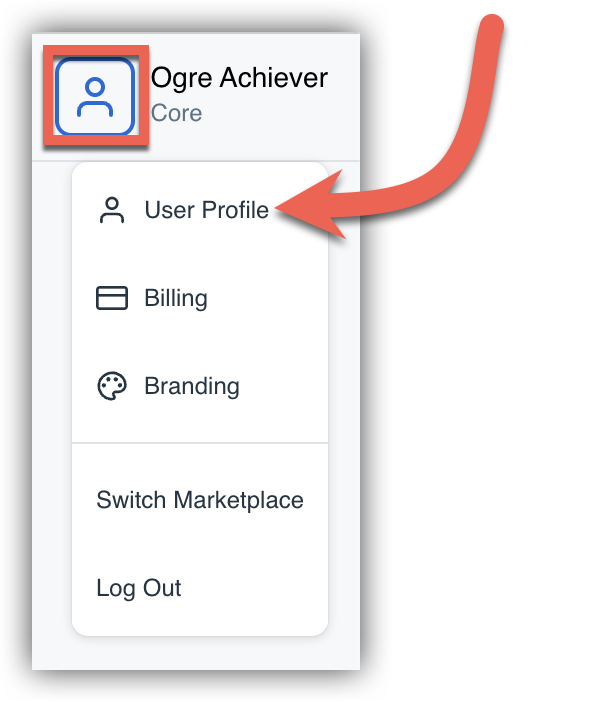
To access these settings, click on the blue person icon in the top right corner, and then User Profile:
Profile Credentials
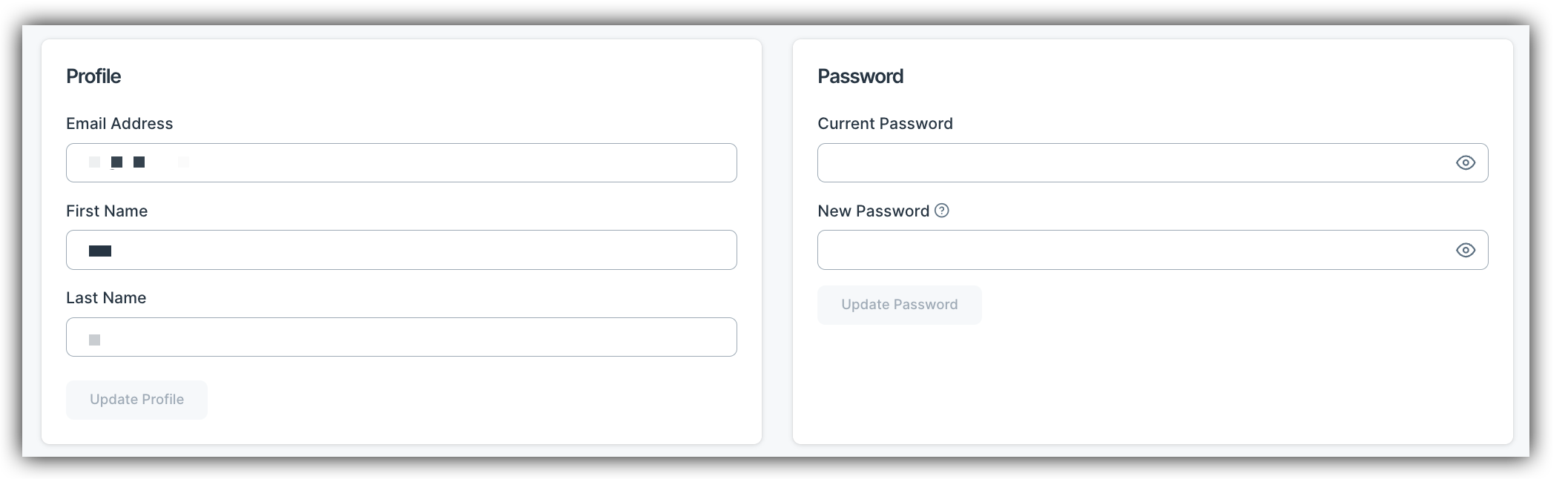
Update your email, name and password. If you are having trouble updating your email address - you may need to contact the Support team at Support@Samcart.com for assistance and they can update that for you!
Two-Factor Authentication
Setting Up Two-Factor Authentication: Two-factor authentication (2FA) adds a second layer of security to your SamCart account, protecting it beyond just your password. Once enabled, you'll be prompted to enter a verification code from your authenticator app each time you log in.
From the Two-Factor Authentication section, click Enable Two-Factor Authentication to begin setup.
- Download an authenticator app on your mobile device if you don't already have one. SamCart supports any TOTP-based authenticator, including Google Authenticator, Authy, and 1Password.
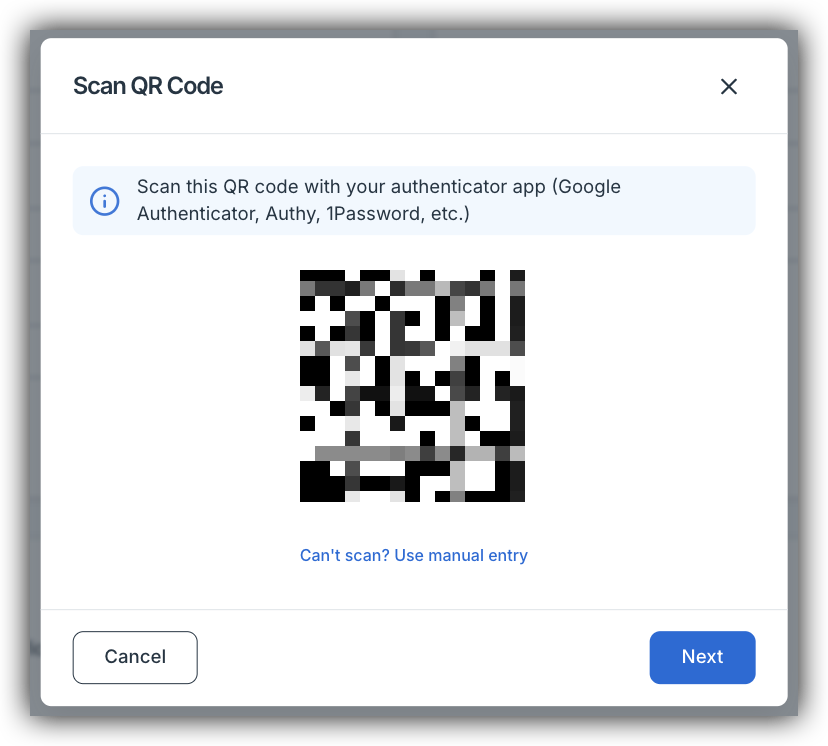
- Open your authenticator app and scan the QR code displayed on screen, or manually enter the setup key provided.
- Enter the 6-digit verification code generated by your authenticator app and click Verify & Enable.
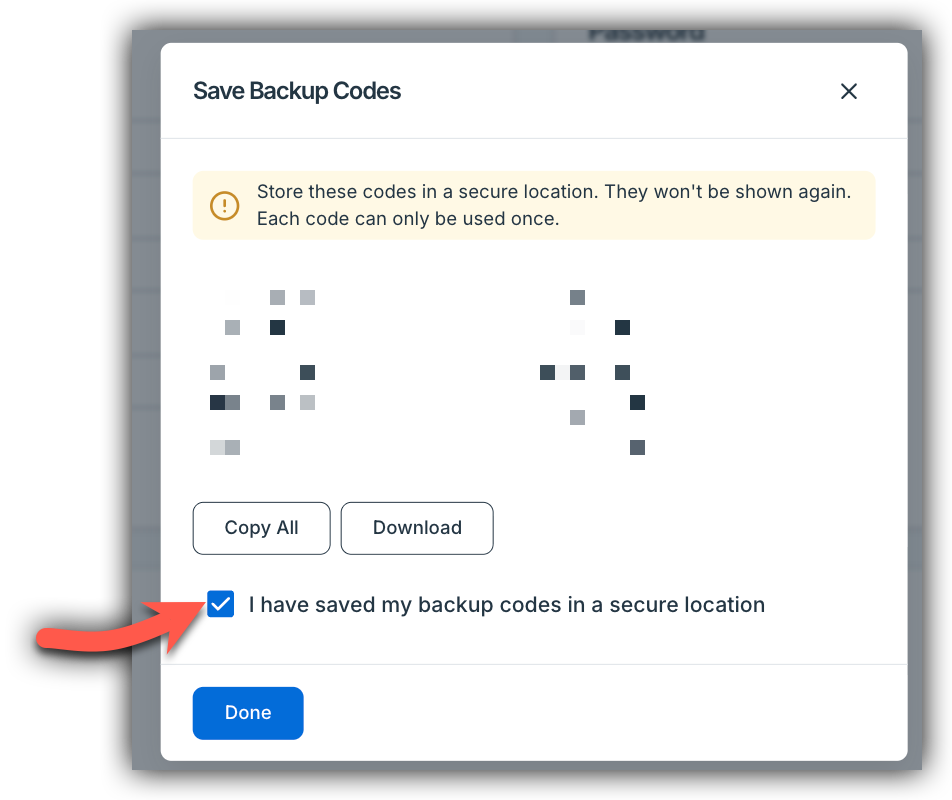
- Save your backup recovery codes by clicking Copy All or Download to save them to your Device. SamCart will generate 10 one-time recovery codes you can use to access your account if you ever lose access to your authenticator app. Store these somewhere secure.
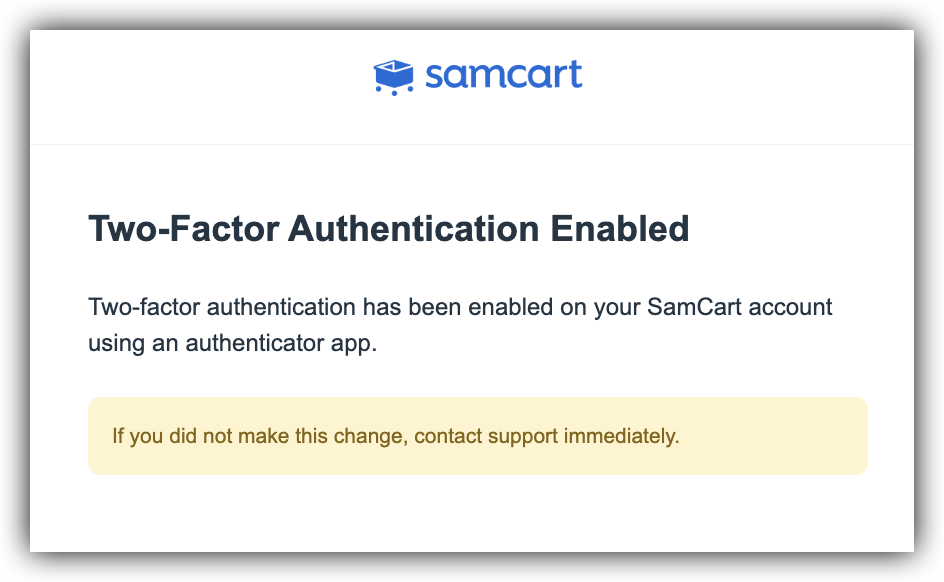
- That's it! Two-factor authentication is now active on your account. You'll receive a security notification email confirming 2FA has been enabled.
Logging In With Two-Factor Authentication
Once 2FA is enabled, your login flow will include a second step. After entering your email and password, you'll be prompted to enter a 6-digit code from your authenticator app.
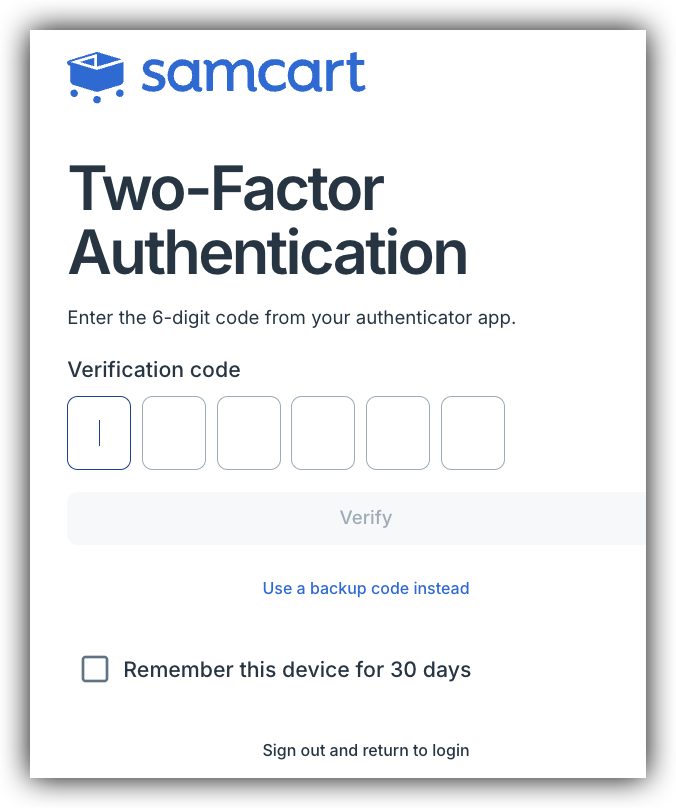
If you're on a trusted personal device, check Remember this device for 30 days to skip the verification step on future logins from that device.
Disabling or Managing Two-Factor Authentication
To turn off 2FA or view your recovery codes:
- Disabling Two-Factor Authentication — removes 2FA from your account. You'll receive a security notification email confirming this change. You will need to enter verification code to disable the feature.
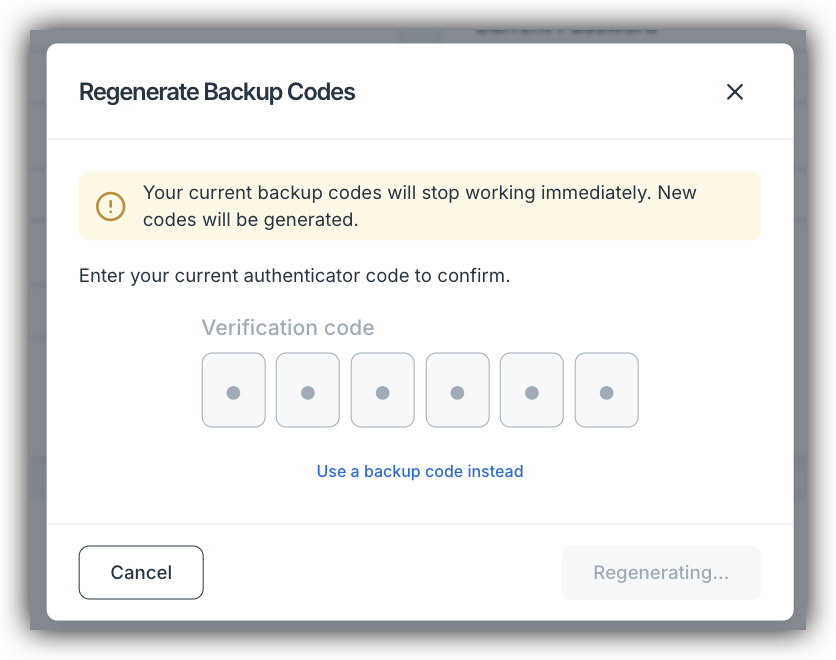
- Regenerating Recovery Codes — see or regenerate your backup codes at any time. You will need to enter verification code to view new codes.
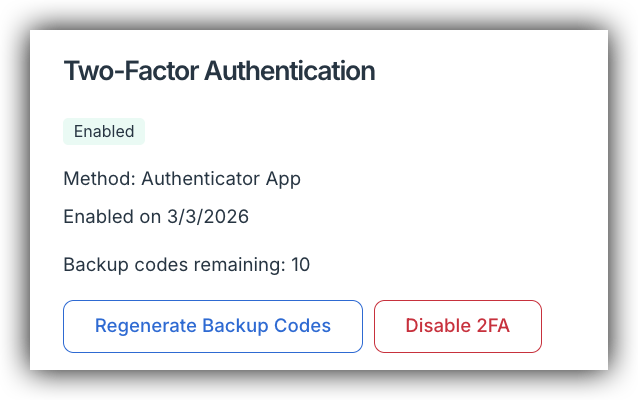
Important: Disabling 2FA immediately removes the additional security layer from your account. Make sure this is intentional before confirming.
Security Notification Emails
SamCart automatically sends security notification emails when important changes are made to your account. These emails are designed to help you quickly detect any unauthorized activity.
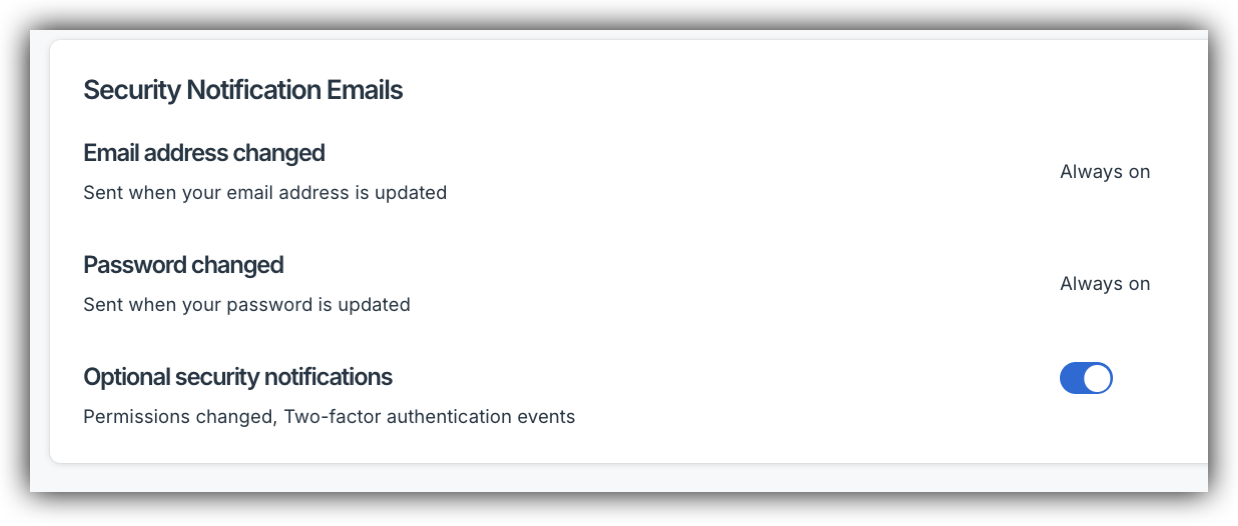
These emails are sent automatically. Select settings cannot be disabled and all Users in the Marketplace will get email Notifications.
- Email address changed — notifies old + new email
- Password changed — notifies user
- User created/deleted — notifies all admins
- Permissions changed — notifies affected user + all admins
- Optional security notifications toggle — covers 2FA events & team member changes (on by default)
This is an example of what the email will look like. The subject will be "Security Alert: XYZ".
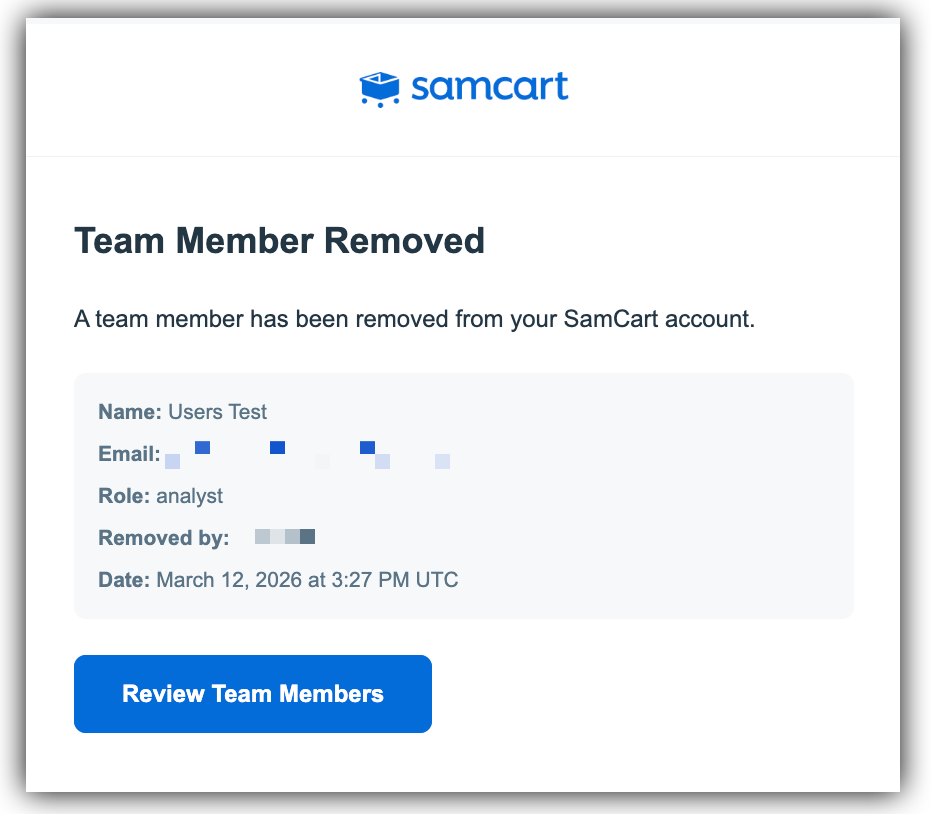
To manage your preferences, navigate to Account Settings and scroll to the Security Notification Emails section.
Important: If you receive a security notification email for a change you didn't make, reset your password immediately and contact Support@SamCart.com.
Login Notifications
Users can now receive email alerts for login activity on their SamCart account — including logins from new devices, new locations, and failed login attempts. Login Notifications are optional and can be adjusted or turned off at any time.
To manage your Login Notifications, navigate to Account Settings and scroll to the Login Notifications section.
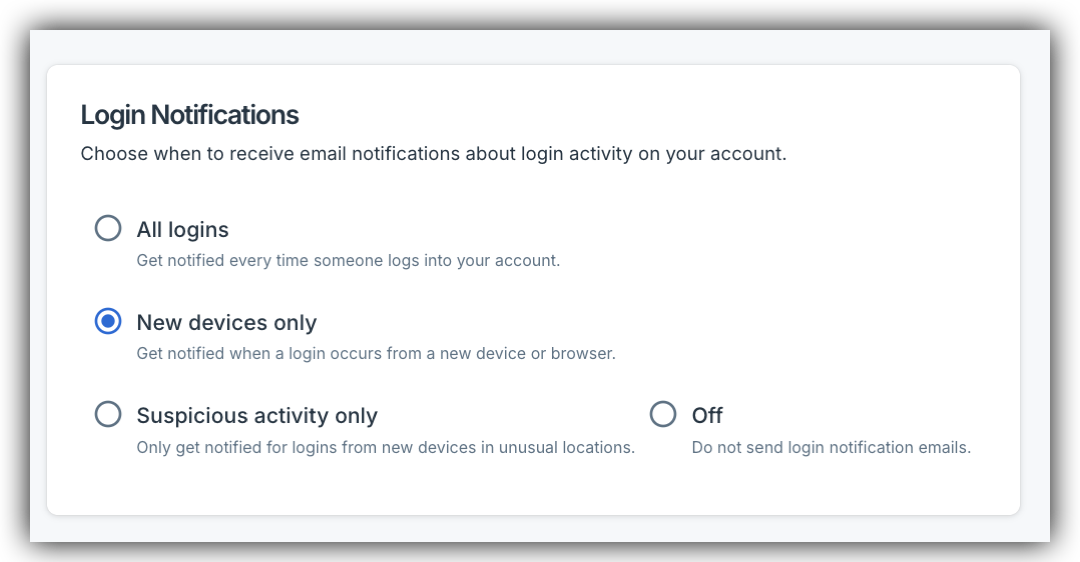
Select your preferred alert level from the available options:
- All logins — Get notified every time someone logs into your account
- New devices only (Default) — Get notified when a login occurs from a new or unrecognized device or browser
- Suspicious activity only — Get notified only for logins from new devices in unusual locations
- Off — Do not receive login notification emails
Don't forget to click Save Changes after updating your preference.
Login notification emails include the timestamp, device type, browser, operating system, IP address, and approximate location of the login. If you receive a notification for a login you didn't make, use the "If this wasn't you" link in the email to secure your account immediately.
NOTE: Login Notifications are separate from Security Notification emails. Security emails — such as alerts for email or password changes — are mandatory and cannot be disabled. Login Notifications are optional and can be adjusted at any time.
System Emails
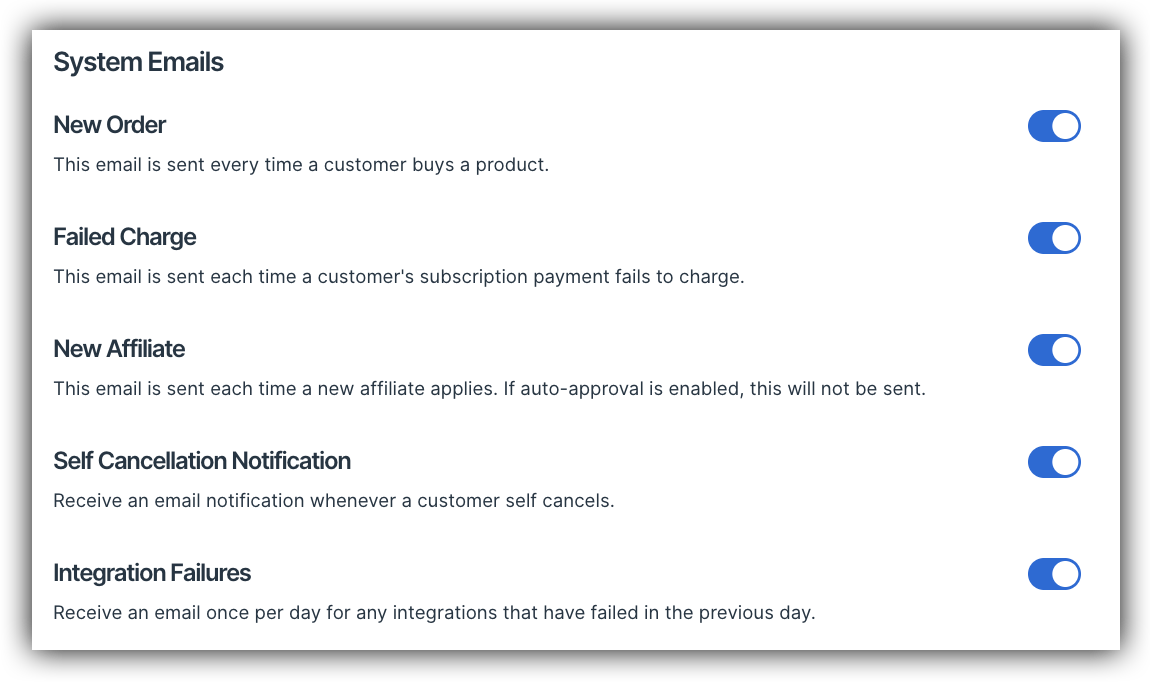
Once you are inside your Account Settings, the first setting you will see are System Emails. There are a few different System Emails settings that you can enable or disable for your User email to receive notifications for. These emails are:
- New Order: If enabled, an email is sent every time a customer buys a product.
- Failed Charge: If enabled, an email is sent each time a customer's subscription payment fails to charge.
- New Affiliate: If enabled, an email is sent each time a new affiliate applies. However - if auto-approval is enabled, this will not be sent.
- Self Cancellation Notification: If enabled, an email notification is sent whenever a customer self cancels via the Customer Hub.
- Integration Failures: If enabled, an email is sent once per day for any integrations that have failed from the previous day.
Scheduled Reports
In the Scheduled Reports section, you will see a list of all scheduled reports and all information about each scheduled report. To stop scheduled report delivery emails for a specific email, click on the trash can icon next to the scheduled report you'd like to stop:

Frequently Asked Questions
Q: I am not receiving one of the System Emails. What should I do?
A: The first thing you should do here is check your Spam, Other or Promotions inboxes to ensure the email isn't being delivered elsewhere! If after that you cannot locate those emails, try toggling the System Email toggle for that email from ON to OFF to back ON. If again, after that you do not receive the email - please reach out to the Support team at Support@Samcart.com so they can look into this further for you!
Q: Can I turn off security notification emails?
A: It depends on the notification type. Emails for email address changes and password changes are Always On and cannot be disabled — these exist to protect your account. Notifications for permissions changes, two-factor authentication events, and team member additions or removals are enabled by default but can be toggled off in Account Settings under Security Notification Emails.
Q: I received a security email for a change I didn't make. What should I do?
A: Reset your password immediately, then contact our support team at Support@SamCart.com so we can help secure your account.
Q: I received a login notification for a device I don't recognize. What should I do?
A: If you receive a login notification for a device or location you don't recognize, your account may have been accessed without your permission. Take these steps immediately:
- Change your password via Profile Credentials in Account Settings.
- Enable Two-Factor Authentication if you haven't already.
- Contact our support team at Support@SamCart.com so we can help investigate.